Creating user tokens
If you want to use a Science Platform API service from a local system, you can create a new user token.
Follow these steps to create a user token.
Open the Rubin Science Platform in a web browser and log in.
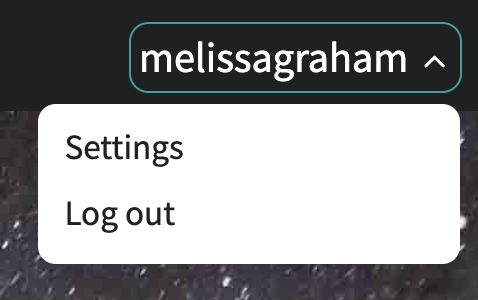
Select Settings from the user drop-down menu at the upper right.
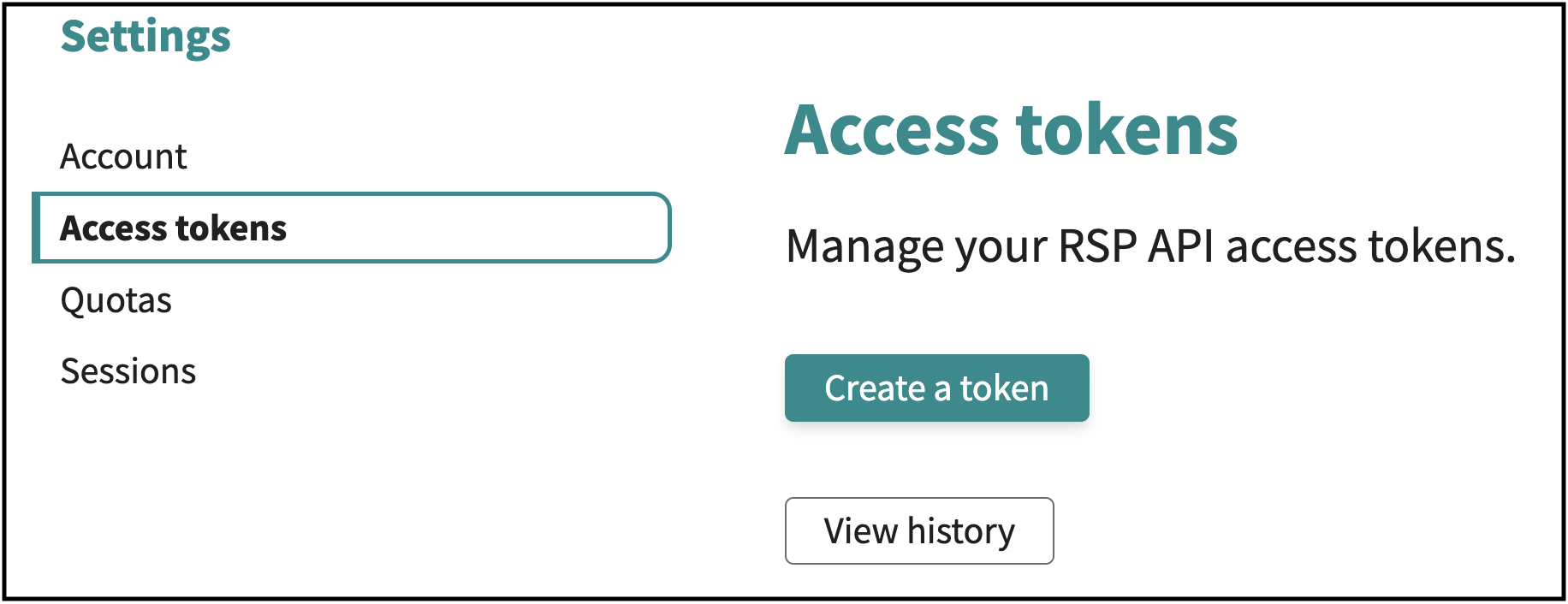
On the settings page, choose Access tokens from the left menu.
Click on Create a token.
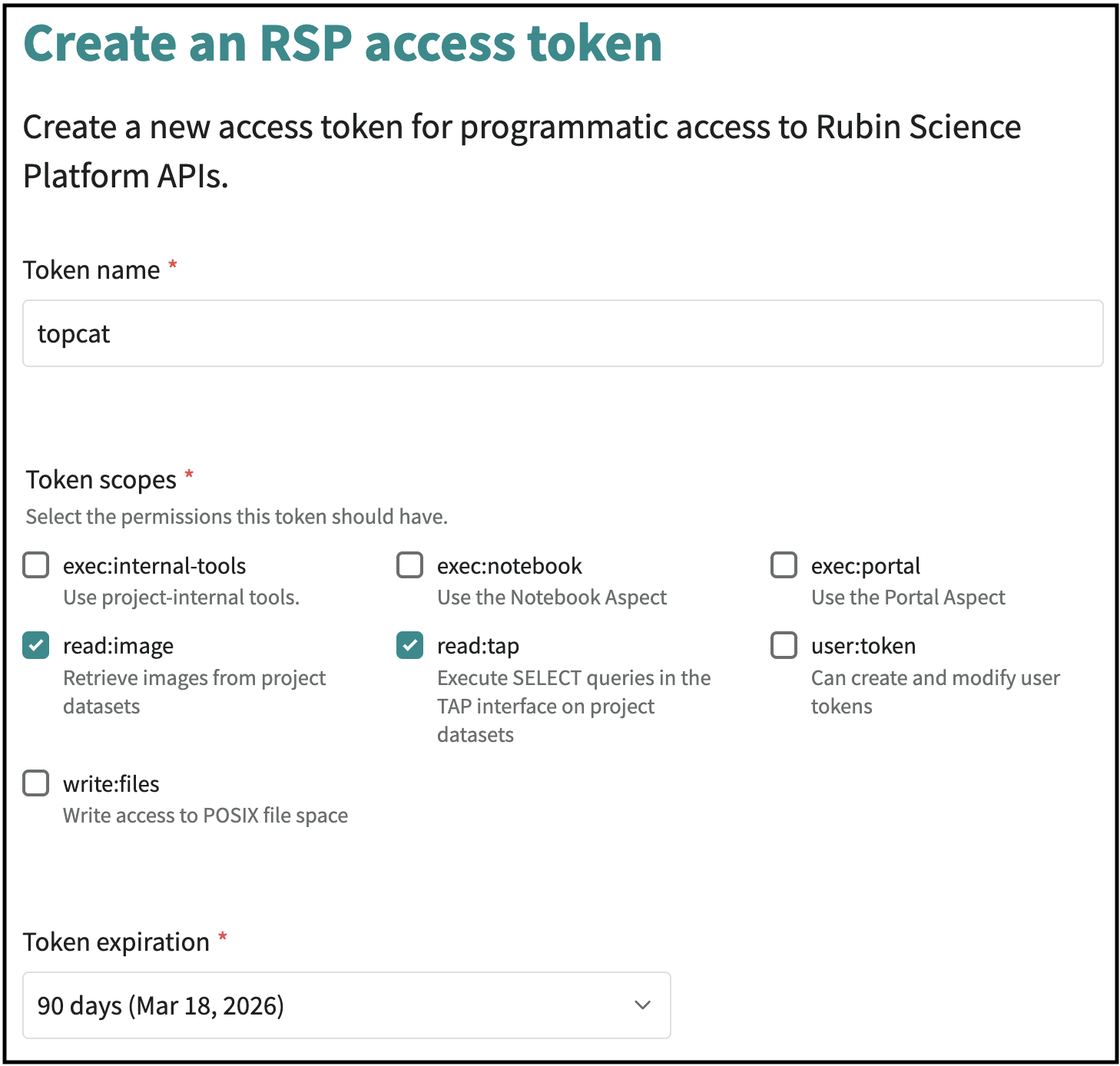
Choose a token name, scopes, and expiration. Usually you will want to name the token after the application you will use it with.
Which scopes to select depends on what you’re doing. For example, to query the TAP service the scope you want is
read:tap, but to retrieve images also selectread:image.If you know that you’ll only be using the token for a limited period of time, you can choose an expiration date. Otherwise, you can set the token to never expire.
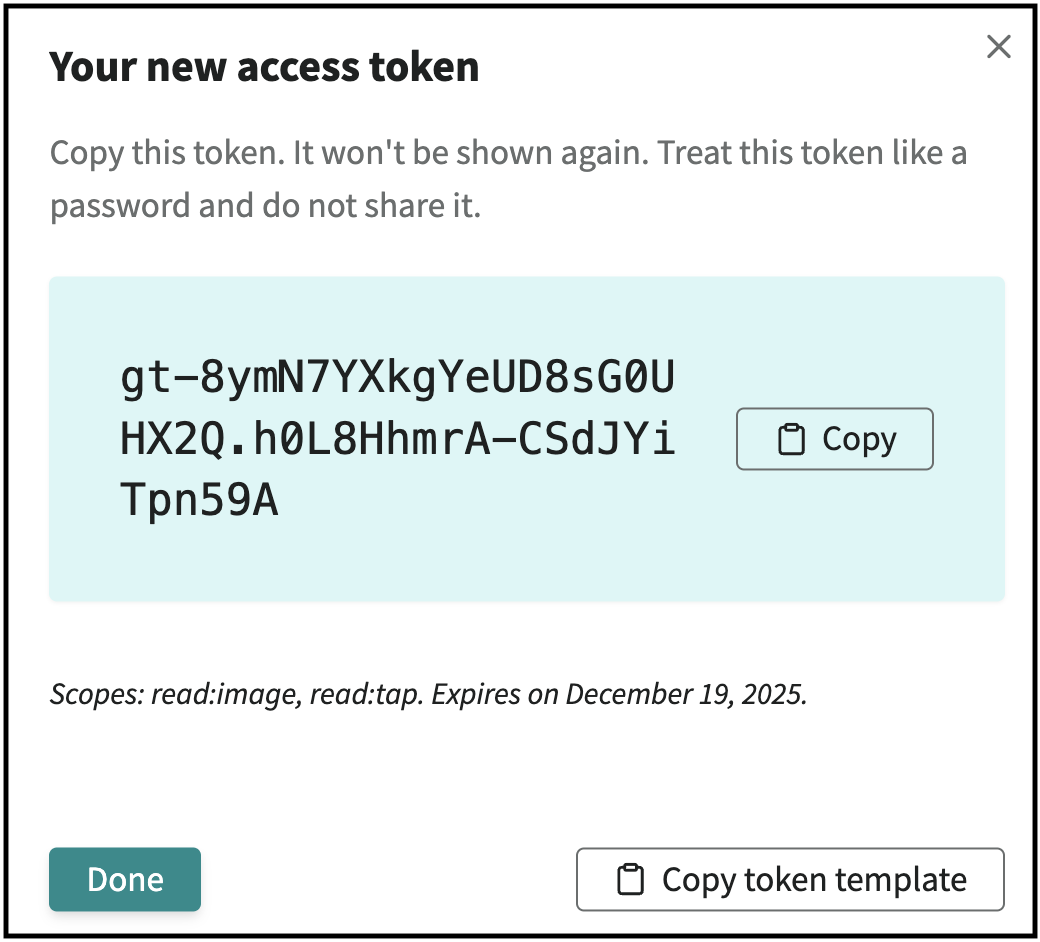
Click on Create token. You will be shown the token, but only once. Be sure to copy this token and save it somewhere secure on your local system.
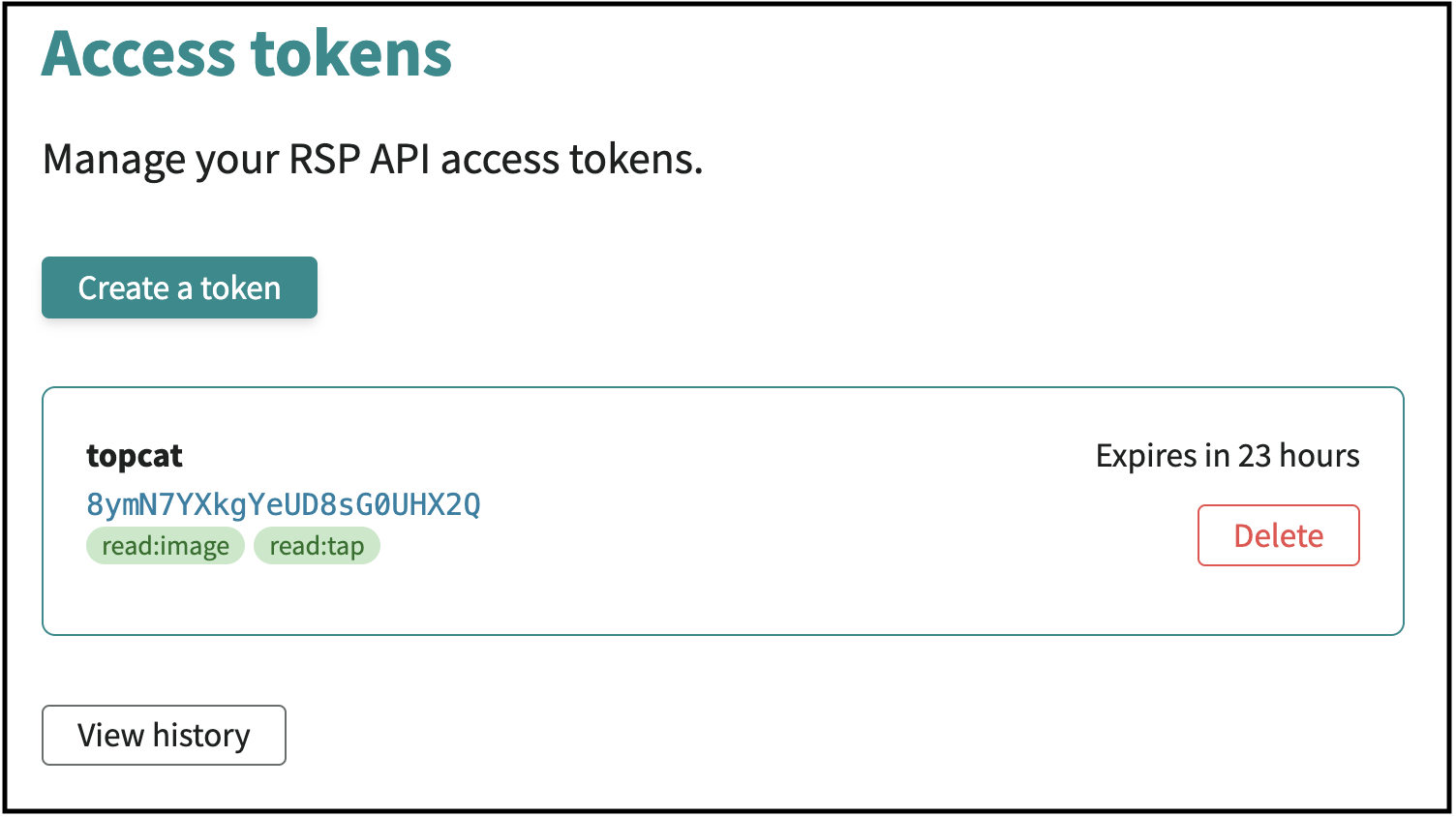
Existing tokens will be shown on the Access tokens page, and can be deleted.
Next steps
Follow a tutorial for authenticating TOPCAT to the TAP (table) service from your local computer.