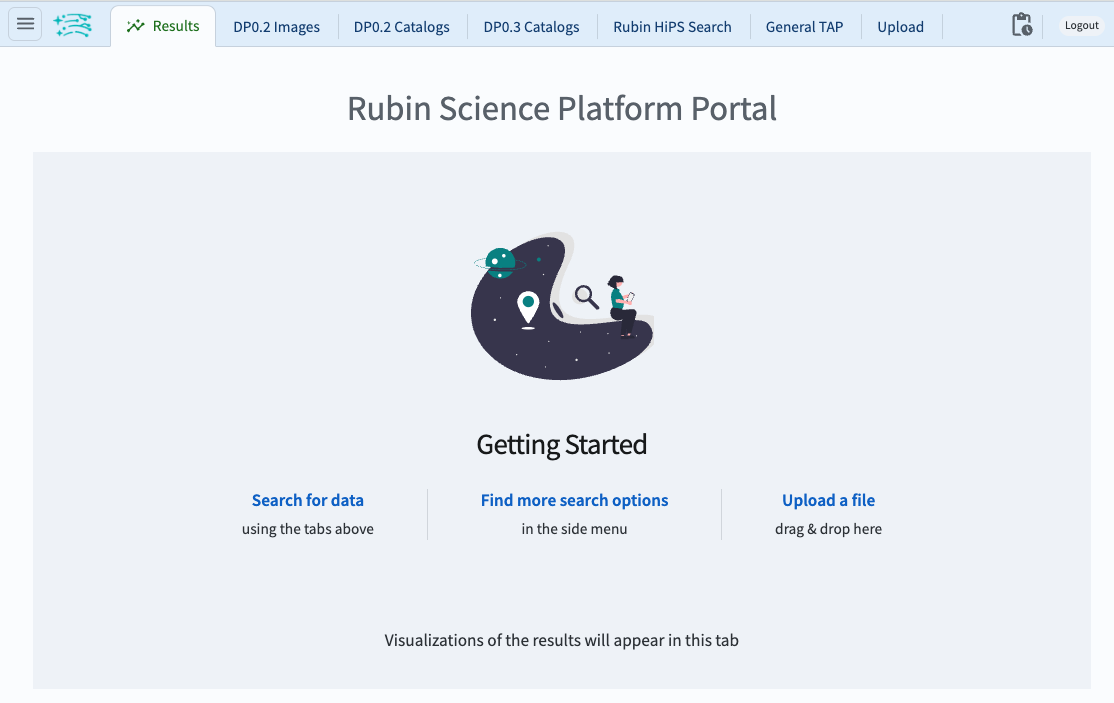
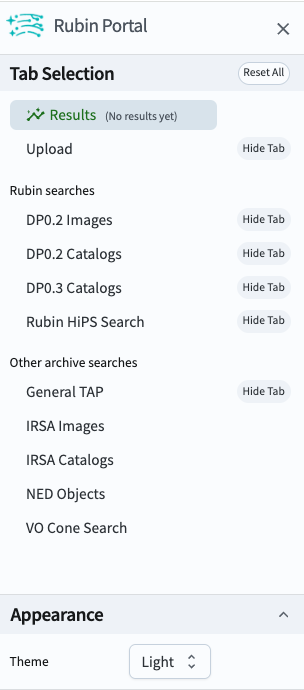
To interact with data, click on one of the tabs that are displayed across the top of the Portal window, or one of the menu options from the menu shown above. There are menu options (which will open new tabs) with the following functionalities:
Catalogs: query catalog data products, either via an interactive GUI, or with ADQL queries.
Images: search for images, including Rubin data as well as images from the IRSA archives.
HiPS: find HiPS (Hierarchical Progressive Survey) images created from the Rubin deep coadd images.
Multi-archive TAP: execute ADQL queries to retrieve catalogs from external (non-Rubin) TAP tables.
Upload: upload your own tables, which can then be joined with Rubin catalogs.
Job Monitor: check the status of your executed queries, see the actual query and information about the results (for completed queries).
Results: see the catalogs and/or images resulting from your executed queries, and interact with them. The image viewer and interactive plotting tools are based on Firefly, which is built by IPAC.
Exactly how to execute a query and view the results depends on which datasets are
queried, and the type of data retrieved (e.g., images or catalogs).
Image and catalog queries can be done by specifying desired search parameters in the user interface,
or may be entered directly as ADQL queries.
Users can toggle between the two views using the View buttons at the upper right of the query tabs (labeled UIassisted and EditADQL).
In addition to the general Portal tutorials,
the specific tutorials that accompany every data release are the best resource
for learning how to query and visualize LSST data.
Access the menu as described above.
At the bottom of the menu, switch from “Light” to “Dark” mode,
or set the Portal to match your local system’s settings.